






 |
 |
 |
|
 |
||
 |

Articles 3D Audio Custom Controls General RB Graphics Hacks Mac OS X Menus Novelty Printing REALbasic 2005 REALbasic 2006 Registration Resources Reviews Serial Speech Sockets XML Video Resource Links News Current News February 2006 January 2006 December 2005 November 2005 October 2005 September 2005 August 2005 July 2005 June 2005 May 2005 April 2005 March 2005  REALbasic for Dummies by Erick Tejkowski  Learning REALbasic through Applications REALbasic for Macintosh REALbasic Cross-Platform Application Development 
Older files are in Stuffit 5 or greater format. Newer files are ".Zip". Download StuffIt Expander |

|
 
One fun trick that many programmers use is the magnifying lens. You've probably seen it. Move the cursor around the screen and watch a magnified version of the area around the cursor appear onscreen. This is helpful for calculating HTML colors as well as viewing icons up close. Add Some Code The first step in this week's project is to create a custom class. Select File->New Class to create a new class. Name the class "flickerFreeCanvas" and change its Super property to "Canvas". Next, create a new Method by choosing Edit->New Method. Name the Method Draw with a parameter of g as graphics. Enter the following code: 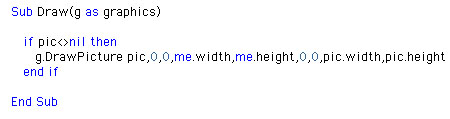
Then, create a Method named Redraw by selecting Edit->New Method. To this new method, add the following code: 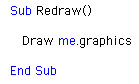
Finally, add a property by choosing Edit->New Property (pic as Picture) Create an Interface This week's interface is simple to create. Add a Canvas control (with default settings and "flickerFreeCanvas" as the Super property) and a Timer (with Period set to 10). Double click Canvas1 and enter the following code into its Paint event: 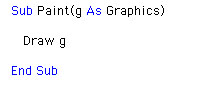 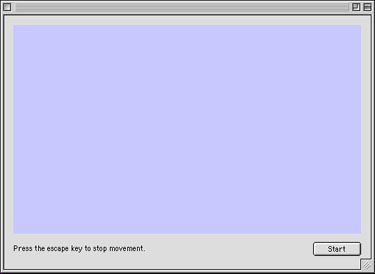
Next, create two integer properties by selecting Edit->New Properties. Name the two properties xx and yy. 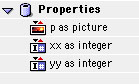
Finally, add the following code to the Action event of Timer1. 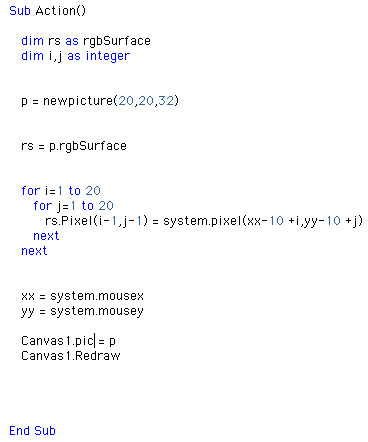
Conclusion If you'd like to download this week's example instead of typing it in, you can get it here. See you next week! |
 |
||
 |
 |
 |
|
 |


 |
 |
 |
||||||||||||||||||||||||||||||
 |
|
 |
||||||||||||||||||||||||||||||
 |
 |
 |
Maintained by the Staff of ResExcellence. This entire site ©1997-2006 ResExcellence
Privacy Statement? Sure we gotta Privacy Statement.
[an error occurred while processing this directive]