






 |
 |
 |
|
 |
||
 |

Articles 3D Audio Custom Controls General RB Graphics Hacks Mac OS X Menus Novelty Printing REALbasic 2005 REALbasic 2006 Registration Resources Reviews Serial Speech Sockets XML Video Resource Links News Current News February 2006 January 2006 December 2005 November 2005 October 2005 September 2005 August 2005 July 2005 June 2005 May 2005 April 2005 March 2005  REALbasic for Dummies by Erick Tejkowski 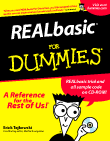 Learning REALbasic through Applications REALbasic for Macintosh REALbasic Cross-Platform Application Development 
Older files are in Stuffit 5 or greater format. Newer files are ".Zip". Download StuffIt Expander |

|
 
Back in the late 1970's, Parker Brothers introduced a great handheld electronic game machine called Merlin. This week we continue with Part 3 of our Merlin Simulator project and continue adding functionality to the simulator. Interface If you'd like to start where we left off last week, download the project. Then, launch REALbasic and open Window1. Drag a Timer control from the toolbar and add it to your Window1 interface. It doesn't matter where you drag it to in the interface, since it will be invisible when the application executes. Change the properties of the Timer to match the following image: 
Add the Code Next, double click Window1 to open its Code Editor and make sure you have all of the following properties 
Then, add a new method to Window1 as follows: Method Name:PlayGameEcho To this new method, add this code: This method takes of the game play for the next game we are implementing for Merlin. This week's game is game number 3: Echo. In this game, Merlin plays you a certain number of sounds, which you must replay to him. At the end of the game, Merlin tells you how many errors you entered before repeating the exact sequence. Now, you need to "wire" the game into the interface. This is accomplished with the MouseUp events of the NumButton and UtilButton control arrays. Expand the NumButton control array in the Code Editor and add this code to it:
Next, expand the UtilButton control array in the Code Editor and add this code:
Finally, add these two lines of code to the GameThreeTimer:
numButton(0).ButtonOff As you probably can guess, this code turns off numButton(0) and numButton(10). Why do this? Well, Merlin momentarily lights these two lights at the start of the game to show which keys are not allowed for a game level choice. Since they get turned on at game startup, we use the Timer to turn them off a certain amount of time later. Conclusion Well, that's it for this week. Select Debug-Run to test your work. If you encounter any difficulties with the code or don't feel like entering it all, you can download the completed project. See you next week! |
 |
||
 |
 |
 |
|
 |


 |
 |
 |
||||||||||||||||||||||||||||||
 |
|
 |
||||||||||||||||||||||||||||||
 |
 |
 |
Maintained by the Staff of ResExcellence. This entire site ©1997-2006 ResExcellence
Privacy Statement? Sure we gotta Privacy Statement.
[an error occurred while processing this directive]