
Stegonography is the discipline of hiding information in files. Today we will build a simple stegonography machine. With it you can hide a secret message within an image. Give the decoder to your friends or family and they can read your secret message.
Intro
If you would like to know more about the study of stegonography, the web has many resources about the topic. This introduction is a good start if this is a new topic to you. The basic idea behind stegonography is that you can hide data within various types of computer files. Since presumably no one is looking for this data in the place or manner you hid it, the data remains secret. Only those who know your method or who have a decoder can retrieve the information from its hiding place. To demostrate, we are going to hide a short message (<100 characters long) within a 100x100 image.
Build the Interface and Add the Code
Launch REALbasic, open Window1 and add the following items:
Next create two properties, by selecting the Edit-NewProperty menu:
	p as Picture
	r as RGBSurface
Navigate to the Paint event of Canvas1 and enter the following code
g.drawpicture p,0,0
Then, enter this code into the Open event of Window1.
dim i,j as integer
dim r as rgbSurface
p=newpicture(100,100,32)
r=p.rgbSurface
for i=0 to 99
for j=0 to 99
r.Pixel(i,j) = rgb(rnd*255,rnd*255,rnd*255)
next
next
Add this code to the Action event of the EncodeButton:
dim i,n as integer
dim s as string
dim f as folderItem
//the message
s=editfield1.text
//length of the message
n=len(editfield1.text)
//write the length of the msg
//in pixel (0,0)
p.graphics.pixel(0,0) = rgb(n,n,n)
for i=1 to n
//find the ascii number of each
//character in the message
n = asc(mid(s,i,1))
//set the red portion of
//successive pixels to the ascii
//value of that position's character
p.graphics.pixel(i,0) = rgb(n,rnd*255,rnd*255)
next
//save the encoded picture message
//as a PICT file.
f = GetSaveFolderItem("image/x-pict","Encoded Image")
if f<>nil then
f.saveAsPicture(p)
end if
editfield1.text=""
canvas1.refresh
Finally, place this code in the Action event of the DecodeButton:
dim i,n as integer
dim s as string
dim f as folderItem
dim c as color
dim pp as picture
//save the encoded picture message
//as a PICT file.
f = GetOpenFolderItem("image/x-pict")
if f<>nil then
//open a picture
pp = f.openAsPicture
//draw this new picture
//on the canvas
p.graphics.drawpicture pp,0,0
r=p.rgbSurface
c = r.Pixel(0,0)
canvas1.refresh
//find the red value
//of the pixel (0,0)
n = c.red
editfield1.text=""
for i=1 to n
//loop thru the pixels in the top row
//and build ascii characters based on
//the red value of each pixel
s = chr(r.pixel(i,0).red)
editfield1.text = editfield1.text+s
next
end if
Conclusion
That's it! Select Debug-Run to test your work. Enter a message in the EditField and press the EncodeButton. You will be asked to save the resulting image to your hard drive. Later, press the DecodeButton to open the encoded image file and the decode the message within. Some important things to rememeber for this project:
The completed project might look something like this:
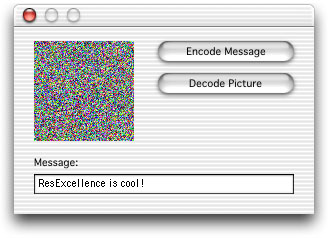
You can download the finished product here. See you next week!