
In recent REALbasic news on ResExcellence, we posted a link to an informative page about creating application bundles. In this week's REALbasic tutorial, we'll build a simple utility to help you create application bundles in a snap. You could do much of this by hand, but its repetitive nature just screams for us to automate it.
Build the Interface
The interface this week is simple to create. Launch REALbasic and open Window1. To this window, add a PushButton.
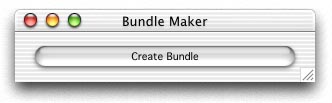
That's it for the interface!
Source Code
You only have to add code to one location for this week's tutorial. Double-click PushButton1 to open the Code Editor. To its Action event, add the following code:
Dim dlgApp as OpenDialog
Dim f,ff as FolderItem
dim contents,destApp,destMacOS as folderItem
dim infoplist, pkgInfo as textoutputStream
dim r as resourcefork
dim s,stringToFind,appLocation as string
//select or create a new folder
//to use as the base for our bundle
f=selectfolder
If f <> Nil and f.exists then
//select a Carbon application
//that we will add to the bundle
dlgApp=New OpenDialog
dlgApp.InitialDirectory=DesktopFolder
dlgApp.Title="Select a REALbasic-made Carbon application."
dlgApp.Filter="application"
ff=dlgApp.ShowModal()
if ff<>nil and ff.exists then
// Create folder named "Contents" in it.
contents = f.child("Contents")
if contents<>nil then
contents.createAsFolder
// Create PkgInfo file (which contains type and creator)
pkgInfo = contents.child("PkgInfo").createtextFile
if pkginfo<>nil then
pkgInfo.write ff.MacType+ff.MacCreator
pkgInfo.close
end if
// Create Info.plist file using 'plist' resource from the built application.
r=ff.openresourceFork
infoplist = contents.child("Info.plist").createtextFile
if infoplist<>nil then
s = r.getResource("plst",0)
//add an entry to the plist file, before we create it
//this points to the Carbon executable in the MacOS folder
stringToFind = "</dict>"+chr(13)+"</plist>"
appLocation = appLocation+"<key>CFBundleExecutable</key>"+chr(13)
appLocation = appLocation+"<string>"+ff.name+"</string>"
appLocation = appLocation+stringToFind
s=replace(s,stringToFind,appLocation)
//create the .plist file
infoplist.write s
infoplist.close
end if
//create a folder to store the carbon app
destMacOS = contents.child("MacOS")
if destMacOS<>nil then
destMacOS.createAsFolder
// Copy the application into the app folder (MacOS)
ff.copyFileTo destMacOS.child(ff.name)
end if
// Set folder name + ".app" extension
// (works in place of setting the bundle bit)
f.name = f.name+".app"
MsgBox "Bundle is complete!"
end if
else
MsgBox "No application chosen. Unable to create bundle."
end if
Else
MsgBox "No folder chosen. Unable to create bundle."
End if
To complete the project, create a new file type. Select Edit-File Type and add a new file type called "application":
Conclusion
To test the project, select the Debug-Run menu. Click the button to select or create a folder. Then, you will be prompted for an application. Make sure that it's a Carbon application. When you're finished, the project displays a Msgbox and the new bundle will be in the location of the folder you chose/created. This demo doesn't account for Classic applications in the bundle, nor does it help you pull the resources from the resource fork and stick them in their own files. We'll cover these topics next week.
You can download the completed version if you prefer not to type all of the above code. See you next week!