






 |
 |
 |
|
 |
||
 |

Articles 3D Audio Custom Controls General RB Graphics Hacks Mac OS X Menus Novelty Printing REALbasic 2005 REALbasic 2006 Registration Resources Reviews Serial Speech Sockets XML Video Resource Links News Current News February 2006 January 2006 December 2005 November 2005 October 2005 September 2005 August 2005 July 2005 June 2005 May 2005 April 2005 March 2005  REALbasic for Dummies by Erick Tejkowski  Learning REALbasic through Applications REALbasic for Macintosh REALbasic Cross-Platform Application Development 
Older files are in Stuffit 5 or greater format. Newer files are ".Zip". Download StuffIt Expander |

|
 
Build the Interface Launch REALbasic. When it opens, you'll find a default window named Window1 in your Project window. In the Property window, change its Frame property to 9 - Metal Window. Then, add a BevelButton to this window, as shown below. 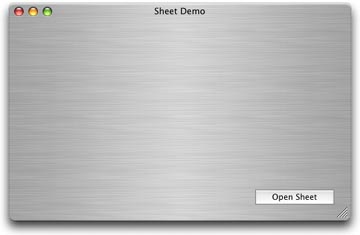
Next, choose File-New Window to create a new window named Window2. In the Property window, change its Frame property to 8 - Sheet Window. Add a PushButton to the window and a few dummy controls. These extra controls won't do anything. They're just there for looks. In my example, I added three radio buttons. 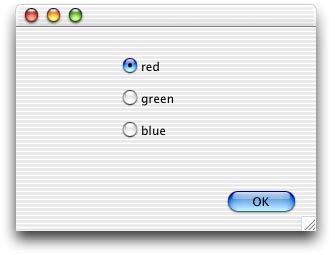
Add the Code Window2.showModalWithin self This code displays Window2 as a sheet within Window1 (self) when the user clicks the button. Finally, add this one-liner to the Action event of the PushButton in Window2. self.close That's it for this week. Choose Debug-Run to see your work. 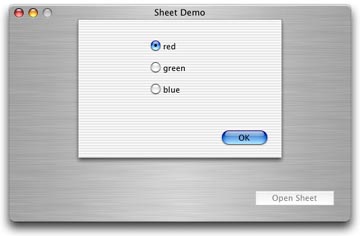
Conclusion |
 |
||
 |
 |
 |
|
 |


 |
 |
 |
||||||||||||||||||||||||||||||
 |
|
 |
||||||||||||||||||||||||||||||
 |
 |
 |
Maintained by the Staff of ResExcellence. This entire site ©1997-2006 ResExcellence
Privacy Statement? Sure we gotta Privacy Statement.
[an error occurred while processing this directive]