
For some time now, REALbasic programmers have been on the sidelines with the Carbon developers when it came to the new interface elements of Mac OS X. While Cocoa geeks impressed their friends with native sheet and drawer support, REALbasic users had to resort to tricks, workarounds, or third party solutions to work with sheets. Drawers and that metallic look were completely off limits for REAlbasic users. The forthcoming release of REALbasic 5.0 aims to change all of that. New in version 5.0 is support for sheets, drawers, and those nifty metallic windows. This week, we'll look at how easy to implement some of these new features.
Build the Interface
NOTE: This demo requires REALbasic 5.0 or higher. It will not work with earlier versions of REALbasic.
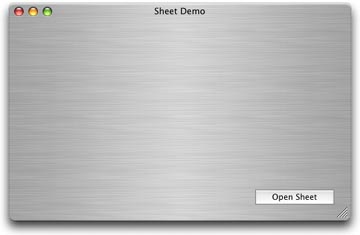
Launch REALbasic. When it opens, you'll find a default window named Window1 in your Project window. In the Property window, change its Frame property to 9 - Metal Window. Then, add a BevelButton to this window, as shown below.
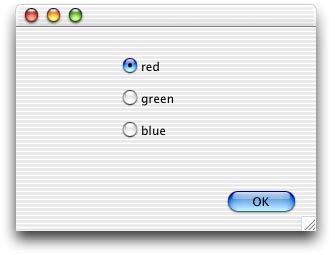
Next, choose File-New Window to create a new window named Window2. In the Property window, change its Frame property to 8 - Sheet Window. Add a PushButton to the window and a few dummy controls. These extra controls won't do anything. They're just there for looks. In my example, I added three radio buttons.
Add the Code
Double-click the BevelButton in Window1 and add the following code to its Action event.
Window2.showModalWithin self
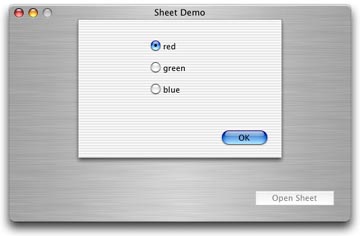
This code displays Window2 as a sheet within Window1 (self) when the user clicks the button.
Finally, add this one-liner to the Action event of the PushButton in Window2.
self.close
That's it for this week. Choose Debug-Run to see your work.
Conclusion
As usual, you can download the completed project. See you next week!