image ResEx Logo
ResExcellence www : Powered by Google
Cell Phone Themes Icons Mighty Mouse Cursors Software Reviews Widgets & Widgets

Articles
   3D
   Audio
   Custom Controls
   General RB
   Graphics
   Hacks
   Mac OS X
   Menus
   Novelty
   Printing
   REALbasic 2005
   REALbasic 2006
   Registration
   Resources
   Reviews
   Serial
   Speech
   Sockets
   XML
   Video
Resource Links
News
   Current News
   February 2006
   January 2006
   December 2005
   November 2005
   October 2005
   September 2005
   August 2005
   July 2005
   June 2005
   May 2005
   April 2005
   March 2005


REALbasic for Dummies
by Erick Tejkowski


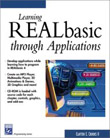
Learning REALbasic through Applications
by Clayton E., Crooks II


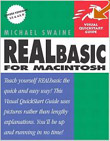
REALbasic for Macintosh
by Michael Swaine


REALbasic Cross-Platform Application Development
by Mark S. Choate


Older files are in Stuffit 5 or greater format. Newer files are ".Zip". Download StuffIt Expander
Tell us about a bad link. Thank You!

Cropping Graphics Part 3 by Erick Tejkowsi
03-05-03

Printer Version


Due to illness, I was unable to post the third part of the Cropping Graphics tutorial last Thursday. To help you catch up, we'll cover two tutorials this week. Instead of the usual REALbasic News, today we'll look at Part 3 of the tutorial. Then, next time we'll complete the project. These tutorials cover the basics of how to implement click-and-drag graphics selection and cropping, like you'll find in many popular applications (e.g.Photoshop, iPhoto, and the Finder). This week we'll add some more color and give the user another selection choice.

The tutorial emulates a Cocoa project available from Apple. As we progress through the project each week, we'll add various features to mimic the original Apple example. So, go check out the original code and come back here ready for some REALbasic coding. NOTE: This demo is made with OS X in mind.

Augment the Interface
Launch REALbasic and open a copy of the last project. Add another PopupMenu control (named PopupMenu2) to Window1. Click the Edit button in the InitialValue property of PopupMenu2 in the Properties window. In the dialog that appears, add the following words (each on its own line): Plain, Finder, iPhoto. Then, edit the existing PopupMenu1 control. Click the Edit button in the InitialValue property of PopupMenu1 in the Properties window. In the dialog that appears, add the color "Gray" ("Grey" for you Canadians. :-) You can position the controls anywhere in the window that you want. Here's what a sample interface might look like.

03-05-03_1.jpg (19k)

That's it for the interface additions this time. Let's move on to the code.

Add the Code
Double-click the Window Editor of Window1 to open the Code Editor. Click on the existing DrawMask method and change its code to:

  
  pictureMask = newpicture(canvas1.width,canvas1.height,32)
  select case popupMenu1.listindex
  case 0
    //red
    pictureMask.graphics.foreColor = rgb(255,0,0)
  case 1
    //red
    pictureMask.graphics.foreColor = rgb(0,255,0)
  case 2
    //blue
    pictureMask.graphics.foreColor = rgb(0,0,255)
  case 3
    //grey
    pictureMask.graphics.foreColor = rgb(200,200,200)
  end select
  pictureMask.graphics.fillrect 0,0,canvas1.width,canvas1.height
  pictureMask.mask.graphics.foreColor = rgb(192,192,192)
  pictureMask.mask.graphics.fillrect 0,0,canvas1.width,canvas1.height
  

Then, navigate to the MouseDrag event of Canvas1 Remove the code that you have there in favor of the new code. This bit of code incorporates features in the first and second parts of this tutorial. It also adds the new iPhoto selection style. Further, it takes the new PopupMenu2 control into account. Because this code snippet is a tad lengthy and exta-wide (for web browsers), I stuck it in a textbox for easier "copy and pasting".

Select Debug-Run to test your work. Click and drag in the image on the left side of the window to view a cropped version on the right side. Play around with the colors and the selection styles to see how it works.

03-05-03_2.jpg (23k)

Conclusion
You can download the completed project for this week here. We'll continue adding features to the project next time. See you then!


Cell Phone Themes Icons Mighty Mouse Cursors Software Reviews Widgets & Widgets

Maintained by the Staff of ResExcellence. This entire site ©1997-2006 ResExcellence
Privacy Statement? Sure we gotta Privacy Statement. [an error occurred while processing this directive]