
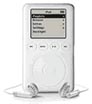
 Have you ever wondered how all those neat iPod utilities work? This week we start a multi-week tutorial about using REALbasic to have some fun with your iPod. Everyone knows that an iPod is really just a specialized external hard drive. When you mount your iPod on the desktop, you can double-click its icon to view its contents, copy files to the iPod, and select "Get Info" to learn about the drive.
Working with the iPod in REALbasic is really just as easy as working with files on any other drive. There are, however, a few simple secrets you need to know about first. Let's see what those secrets are!
iPod Secrets
Yes, an iPod is really just a hard drive. Apple has made judicious use of invisible files on the iPod, though. Using REALbasic, you can easily scan through the items on the drive, looking for invisible files and folders. If you do, you'll soon discover that there is one invisible folder named iPod_Control. Inside that folder is another folder named Music. Look inside the Music folder and you'll find any number of folders with names like F00, F01, and F02... Within each of those numbered folders, you can find the audio files that make up the Library on your iPod. For this week's project, we'll find those music files.
Build the Interface
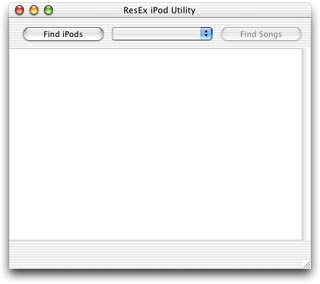
Launch REALbasic and add a Listbox, a PopupMenu, and two Pushbuttons to Window1. Arrange the interface however you want, but mine looks like this:
Next, add a Property to Window1 to keep track of the found iPods.
iPods(0) as folderItem
Add the Code
The first think we'll do is scan through all mounted drives, looking for an iPod. All we have to do is look for that iPod_Control folder. If we find one, we can guess that it's an iPod. Then, we stick the names of all found iPods in the PopupMenu control. Add the following code to the Action event of PushButton1.
  dim f as folderItem
  dim i,n as integer
  redim iPods(0)

  popupmenu1.deleteAllRows
  n=VolumeCount
  for i= 0 to n-1
    //look for invisible "iPod_Control" file
    //at the root level of the iPod
    f=Volume(i).child("iPod_Control")
    if f<>nil and f.exists then
      //we found one!
      listBox1.addrow "Found an iPod named:"+Volume(i).name
      //remember it for later
      iPods.append Volume(i)
      //add the name to PopupMenu1
      popupmenu1.addrow Volume(i).name
      //enable the "find songs" button
      PushButton2.enabled=TRUE
    end if
  next

  //select the first item in popupMenu1
  if popupmenu1.listCount>0 then
    popupmenu1.listindex = 0
  end if
Once we find an iPod, its a simple matter to loop through all of the music folders to search for files. Add the following code to the Action event of PushButton2 to scan the iPod for tunes.
  dim i,j as integer
  dim f as folderItem
  dim musicFolders(0) as folderItem

  me.enabled=FALSE
  f = iPods(PopupMenu1.listindex + 1).child("iPod_Control").child("Music")
  if f<>nil then
    //find all folders in the hidden Music folder
    for i = 1 to f.count
      if f.item(i).directory then
        musicFolders.append f.item(i)
      end if
    next
    //now loop through each folder and grab the songs
    for i = 1 to ubound(musicFolders)
      for j = 1 to musicFolders(i).count
        listBox1.addrow musicFolders(i).item(j).name
      next
    next
  end if
Conclusion
That's all there is to it! Choose Debug-Run to see your work. Don't forget to mount an iPod before you test it, otherwise this project won't do much. You can download the code for this week's project here.
If you have a lot of files on your iPod, you might notice that this code takes some time to find the files. Worse yet, it seems to lock up the interface while it searches. Next week we'll see how to give the user some feedback while the project searches for files. We'll also make the application more responsive by "threading" the heavy lifting. Finally, we'll improve the utility by allowing the user the copy files from the iPod to another hard drive. See you next week!