






 |
 |
 |
|
 |
||
 |

Articles 3D Audio Custom Controls General RB Graphics Hacks Mac OS X Menus Novelty Printing REALbasic 2005 REALbasic 2006 Registration Resources Reviews Serial Speech Sockets XML Video Resource Links News Current News February 2006 January 2006 December 2005 November 2005 October 2005 September 2005 August 2005 July 2005 June 2005 May 2005 April 2005 March 2005  REALbasic for Dummies by Erick Tejkowski  Learning REALbasic through Applications REALbasic for Macintosh REALbasic Cross-Platform Application Development 
Older files are in Stuffit 5 or greater format. Newer files are ".Zip". Download StuffIt Expander |

|
 
What is a "Buttons" Listbox? The custom list control I have designed is similar to this list, however rather than using three separate controls, I've merged it into one. It isn't a perfect list (it could be redesigned a bit and extended on to support "groups") but it served its purpose in the application I used it for, and I've found it to be kinda neat.
In the "buttons" list, we have a list of "normal" rows that scrolls up and down (the scroll bar reaching all the way to the bottom is slightly misleading which is part of what could be fixed) while the "buttons" stay fixed permanently to the bottom of the visible area of the list. You can almost think of it as the "sidebar" for the list, like the sidebar in Finder windows in Mac OS X 10.3.
How it Works The basics of how all of the row selection with the mouse is handled is the same as how it's handled in the custom buttons tutorials also on this site. Not much is fancy there. Drawing the row is the most interesting, and the way it works is quite simple. Using the current offset from the scrollbar, it determines which rows are visible, and draws them one at a time, then draws the buttons at the bottom of the list (including the white background) so that they obscure any visible portions of the rows that are under them. This is done in the Redraw method of the list class.
Finished
|
 |
||
 |
 |
 |
|
 |


 Ok, "Buttons" is a horrible name, but I can't think of anything better to describe it, except maybe a double-ended Listbox, which actually now that I think of it works pretty well but I already named everything and I don't want to change it now... (Hehe) Instead, I'll just show you what I mean. Open up System Preferences and go the Accounts pane. There you will see a list that looks something akin to the one on the right.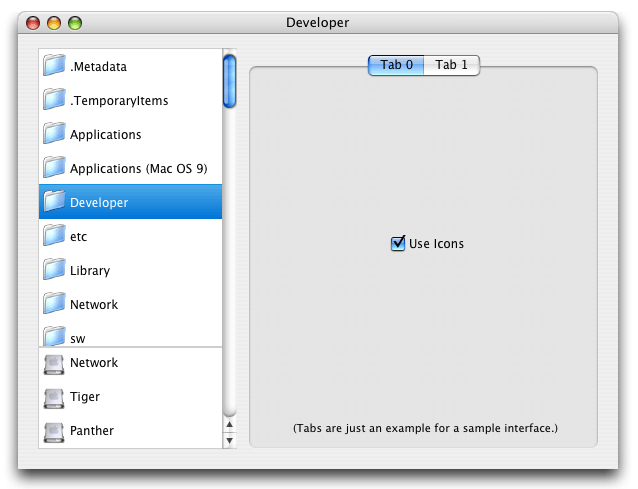
 |
 |
 |
||||||||||||||||||||||||||||||
 |
|
 |
||||||||||||||||||||||||||||||
 |
 |
 |
Maintained by the Staff of ResExcellence. This entire site ©1997-2006 ResExcellence
Privacy Statement? Sure we gotta Privacy Statement.
[an error occurred while processing this directive]