
What is a "Buttons" Listbox?
 Ok, "Buttons" is a horrible name, but I can't think of anything better to describe it, except maybe a double-ended Listbox, which actually now that I think of it works pretty well but I already named everything and I don't want to change it now... (Hehe) Instead, I'll just show you what I mean. Open up System Preferences and go the Accounts pane. There you will see a list that looks something akin to the one on the right.
The custom list control I have designed is similar to this list, however rather than using three separate controls, I've merged it into one. It isn't a perfect list (it could be redesigned a bit and extended on to support "groups") but it served its purpose in the application I used it for, and I've found it to be kinda neat.
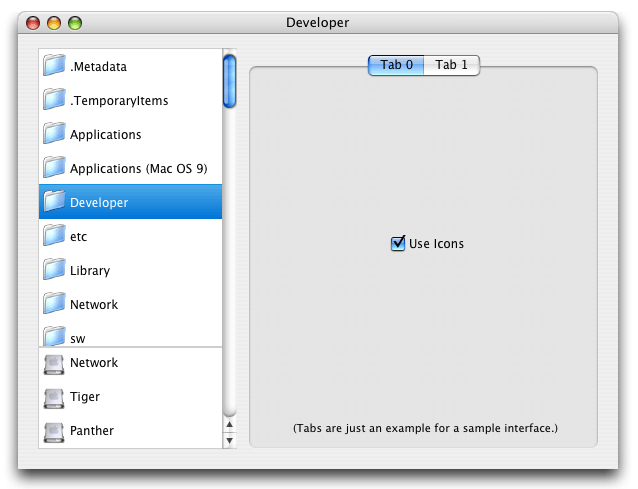
In the "buttons" list, we have a list of "normal" rows that scrolls up and down (the scroll bar reaching all the way to the bottom is slightly misleading which is part of what could be fixed) while the "buttons" stay fixed permanently to the bottom of the visible area of the list. You can almost think of it as the "sidebar" for the list, like the sidebar in Finder windows in Mac OS X 10.3.
How it Works
Rather than go too much into the details of how every line works together, I just want to touch on a few things. First, in the class that you can download right now, you can add and remove buttons and rows dynamically on the fly at runtime, and you have control over what the icon is for the rows and buttons. There's a standard Change event that is fired when a row or "button" is selected. Rows are ordered 0 to n from top to bottom, and buttons are numbered 0 to n bottom to top.
The basics of how all of the row selection with the mouse is handled is the same as how it's handled in the custom buttons tutorials also on this site. Not much is fancy there. Drawing the row is the most interesting, and the way it works is quite simple. Using the current offset from the scrollbar, it determines which rows are visible, and draws them one at a time, then draws the buttons at the bottom of the list (including the white background) so that they obscure any visible portions of the rows that are under them. This is done in the Redraw method of the list class.
Finished
I truly do think the project is simple enough that for anyone more experience than a beginner can understand what is going on underneath and modify it for their own needs. A little brief this week, yes, but I've had this project lying around for a while and wanted to share it with y'all but didn't want to have to explain every line of it as it isn't that interesting. As always, you can download the project here.