
Using a New *PRO* Feature From REALbasic 2005!
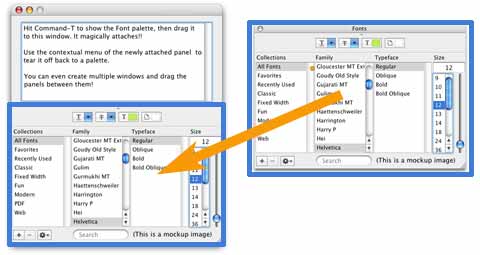
In this tutorial, we're going to use a new feature from REALbasic 2005 which is the ContainerControl. The ContainerControl allows you to group controls into one single control which you can embed into windows either in the IDE or dynamically at runtime. They're quite cool (although still a bit buggy) and darn useful. In this example we'll create a font palette (we'll just use an image of the standard one instead of writing the whole thing) which can be dragged into and attached to multiple windows. It's pretty fancy. But yes, ContainerControls are REALbasic Pro feature ONLY. A major bummer, but that's the way the cookie crumbles. It is a rather advanced feature, so I'm not crying. The real bummer is that standard users can't use ContainerControl solutions made by Pro users. For those of you without Pro, you can download a Mac OS X binary and see what it's like. Anyway...
CCPanel Class
The first place we're going to start is the CCPanel class. This is the ContainerControl subclass which will be the base class of all of our panels (in this tutorial, there's only one). It has four properties and one constant; They are: FirstX as Integer, FirstY as Integer, InPalette as Boolean, Type as String, and the constant is: kPanelTypeFont = "Font". The FirstX and FirstY properties are used when dragging the panel, the InPalette property is true only if that particular instance of the font panel (remember, there can be many) is in a palette on its own, and the Type property is a string which identifies what kind of panel it is so we can use the CCPanel abstractly in some places.
Note that when creating ContainerControls in the IDE, it can be a little confusing. Like Windows, ContainerControls have two special kinds in the IDE, one with an interface, one without. As with the "Add Window" button in the project tab, the "Add ContainerControl" tab adds a ContainerControl with an interface. Only the last subclass of a ContainerControl in a single hierarchy can have an interface. To create a ContainerControl subclass without an interface, use "Add Class" and then set the superclass property to ContainerControl. The CCPanel class is a ContainerControl without an interface.
In the MouseDown and MosueDrag events we add code to offer a "Tear Off" contextual menu item when the panel is not being shown in its own palette.
Function MouseDown(X As Integer, Y As Integer) As Boolean

  // Workaround for a bug where ConstructContextualMenu isn't called
  if IsContextualClick then

    // We Don't Tear out from the Palette
    if not InPalette then

      // Show Contextual Menu for Tear Off
      dim base, hitItem as New MenuItem
      base.Append New MenuItem("Tear Off")
      hitItem = base.PopUp
      if hitItem = nil then return false
      if hitItem.Text = "Tear Off" then

        // Remove from Window and Show Palette
        WWindow(me.Window).DetachPanel me.Type
        PaletteManager.ShowPalette CCPanel.kPanelTypeFont
      end if
    end if
  end if


  FirstX = X
  FirstY = Y
  return true
End Function
Note that we have to work around a stupid bug in the above code. I'm not sure why it's happening in this particular project, but note that ConstructContextualMenu does sometimes work in ContainerControls, it just didn't in this case. Someone should file a bug report. :^)
Sub MouseDrag(X As Integer, Y As Integer)
    if FirstX <> X or FirstY <> Y then
    dim item as DragItem
    item = me.Window.NewDragItem(Me.Left, Me.Top, me.Width, me.Height)
    item.PrivateRawData("Plte") = "Font|" + Str(me.Window.Handle) // Palette Name|Window Pointer
    item.Drag
  end if
End Sub
Here, we create the drag item for the panel tear-off. Using the PrivateRawData method, we ensure that this data is only draggable within our own application. The data in the drag item is the type of panel it is, and the handle of the window it currently resides in. We use this to know which window the panel was dragged from.
CCFontPanel
The CCFontPanel class is a subclass of CCPanel and has an interface. To create it, click "Add ContainerControl" and set its super to CCPanel. There isn't any real interface in this control except that we specify a backdrop image to substitute for not having a real interface. Other than that, there's not even any code except for a very short Constructor method which simply assigns the Type value to CCPanel.kPanelTypeFont.
WPalette
This is the window class that will contain a single panel to display them individually in floating windows. Because of the way some code we'll see later on is written, we need to intercept the Close messages and actually hide the window instead. We do this like so:
Function CancelClose(appQuitting as Boolean) As Boolean

  // If we don't do this, we'll be released and the window
  // will permanently go bye bye which we don't want.
  if not appQuitting then
    self.Hide
    return true
  end if
End Function
That's the only code this class contains. The code to embed and detach panels into this window is elsewhere.
WWindow
This is where the real work begins, despite the bland name. WWindows will be able to contain multiple panels along with whatever the window is supposed to contain. Although in this tutorial we only show the code to display one kind of panel in a window, you could add another CCPanel subclass and a couple more lines of code and you could have multiple panels in the window.
Because WWindow can contain multiple panels, there's a Panels(-1) as CCPanel property in the class, a long with a GetPanel(type as String) as CCPanel method which searches the Panels array for the panel with the given type. (Remember, only one instance of each type of panel can be in a window at the same time.)
Function GetPanel(type as String) As CCPanel
  dim index as Integer

  // Just a Simple Search
  for index = UBound(Panels) DownTo 0
    if Panels(index).Type = type then
      return Panels(index)
    end if
  next
End Function
And because panels are dragged and dropped into the window we have to make sure we accept that special type:
Sub Open()

  // We Accept Palette Drops
  me.AcceptRawDataDrop("Plte")
End Sub
Panels are attatched and detached from the window by type using the two methods EmbedPanel and DetachPanel. The EmbedPanel method first checks to make sure that it doesn't already have a panel of the type requested to be embedded, then creates the panel, and embeds it within the window, adjusting the interface to make room.
Sub EmbedPanel(panelType as String)
  dim panel as CCPanel

  // Can't have more than one
  if GetPanel(panelType) <> nil then return

  // Handle Embedding
  Select Case panelType
  Case CCPanel.kPanelTypeFont
    dim fontPanel as New CCFontPanel
    fontPanel.InPalette = false
    fontPanel.EmbedWithin(self, 0, 183, 421, 271)
    fontPanel.Left = 0   // Workaround for
    fontPanel.Top = 183  // a stupid bug
    EditField1.Height = 157
    panel = fontPanel
  end Select

  // Add the Panel to the Array
  Panels.Append panel
End Sub
The DetachPanel method pretty much does the opposite. It finds the panel, removes it from the window by calling the Close method, and then adjusts the interface of the window so it fills the void left behind.
Sub DetachPanel(panelType as String)
  dim panel as CCPanel

  // Find Panel
  panel = GetPanel(panelType)

  // Handle Removal
  Select Case panelType
  Case CCPanel.kPanelTypeFont
    panel.Close
    EditField1.Height = 420
  end Select

  // Remove Panel
  panels.Remove panels.IndexOf(panel)
End Sub
Lastly, the DropObject code which accepts the panel drops and calls for the embedding in the window is:
Sub DropObject(obj As DragItem)

  if not obj.RawDataAvailable("Plte") then return
  if obj.PrivateRawData("Plte") = "" then return

  // Parse Data
  dim data, paletteType as String, windowHandle as Integer
  data = obj.PrivateRawData("Plte")
  paletteType = NthField(data, "|", 1)
  windowHandle = Val(NthField(data, "|", 2))

  // Embed Panel
  PaletteManager.EmbedPanel paletteType, self, windowHandle
End Sub
Notice that rather than using the EmbedPanel method of the WWindow class, we call the EmedPanel method of the PaletteManager module. The PaletteManager module does several things, the one above being the handling of finding the window the panel is currently in and detaching the panel from it (unless it is a WPalette window in which case it just hides the window) and then tells the new window to embed the panel. It does some more things which we'll see below.
PaletteManger
We're almost done! The PaletteManager modules manages the global palettes by creating them, showing them, and hiding them when appropriate. It also contains the EmbedPanel method which finds the old window (the one the panel is currently in), detaches it, and then embeds a new panel in the new window. While we're talking about it, here's the code:
Sub EmbedPanel(panelType as String, newWindow as WWindow, oldWindowHandle as Integer)
  dim i, count as Integer
  dim oldWindow as WWindow

  // That Would Be Silly
  if newWindow.Handle = oldWindowHandle then
    return
  end if

  // Detach Panel from Previous Owner
  if gFontPaletteWindow.Handle <> oldWindowHandle then
    for i = WindowCount - 1 DownTo 0
      if Window(i).Handle = oldWindowHandle then
        oldWindow = WWindow(Window(i))
        exit
      end if
    next
    oldWindow.DetachPanel panelType
  else
    HidePalette panelType
  end if

  // Embed Panel
  Select Case panelType
  Case CCPanel.kPanelTypeFont
    newWindow.EmbedPanel panelType
  end Select
End Sub
Not rocket science, I don't think. The one thing to note is that if the user drags a panel from a palette to a window, it does NOT detach the panel from the palette, it just hides it.
The Initialize method is called in App.Open and creates the panels and a dictionary which tracks visibility of the palettes.
Protected Sub Initialize()

  // New Vars
  gPaletteVisibility = New Dictionary

  // Font Palette
  gFontPalette = New CCFontPanel
  gFontPaletteWindow = New WPalette
  gFontPalette.EmbedWithin(gFontPaletteWindow, 0, 0, 421,  271)
  gFontPalette.InPalette = true
  gPaletteVisibility.Value(gFontPalette.Type) = false
End Sub
There are two simple methods for showing and hiding palettes, and then one to check the visiblity:
Sub ShowPalette(panelType as String)
  Select Case panelType
  Case CCPanel.kPanelTypeFont
    gFontPaletteWindow.Show
  end Select

  gPaletteVisibility.Value(panelType) = false
End Sub


Sub HidePalette(panelType as String)
  Select Case panelType
  Case CCPanel.kPanelTypeFont
    gFontPaletteWindow.Hide
  end Select

  gPaletteVisibility.Value(panelType) = false
End Sub


Function PaletteIsShowing(panelType as String) As Boolean
  return gPaletteVisibility.Value(panelType).BooleanValue
End Function
Again, very simple. But guess what? That's all the code!
Finished
Yikes! That was long! And the funny part is, that was pretty simple and isn't even as rhobust as it should be, but it does work and should suffice as a good starting point or at least give you good ideas (or at the very least, one method definitely not to copy if you think it's really that horrible) to add detachable panels to your programs. As always, you can download the project here.